How to brand your Sizzle app
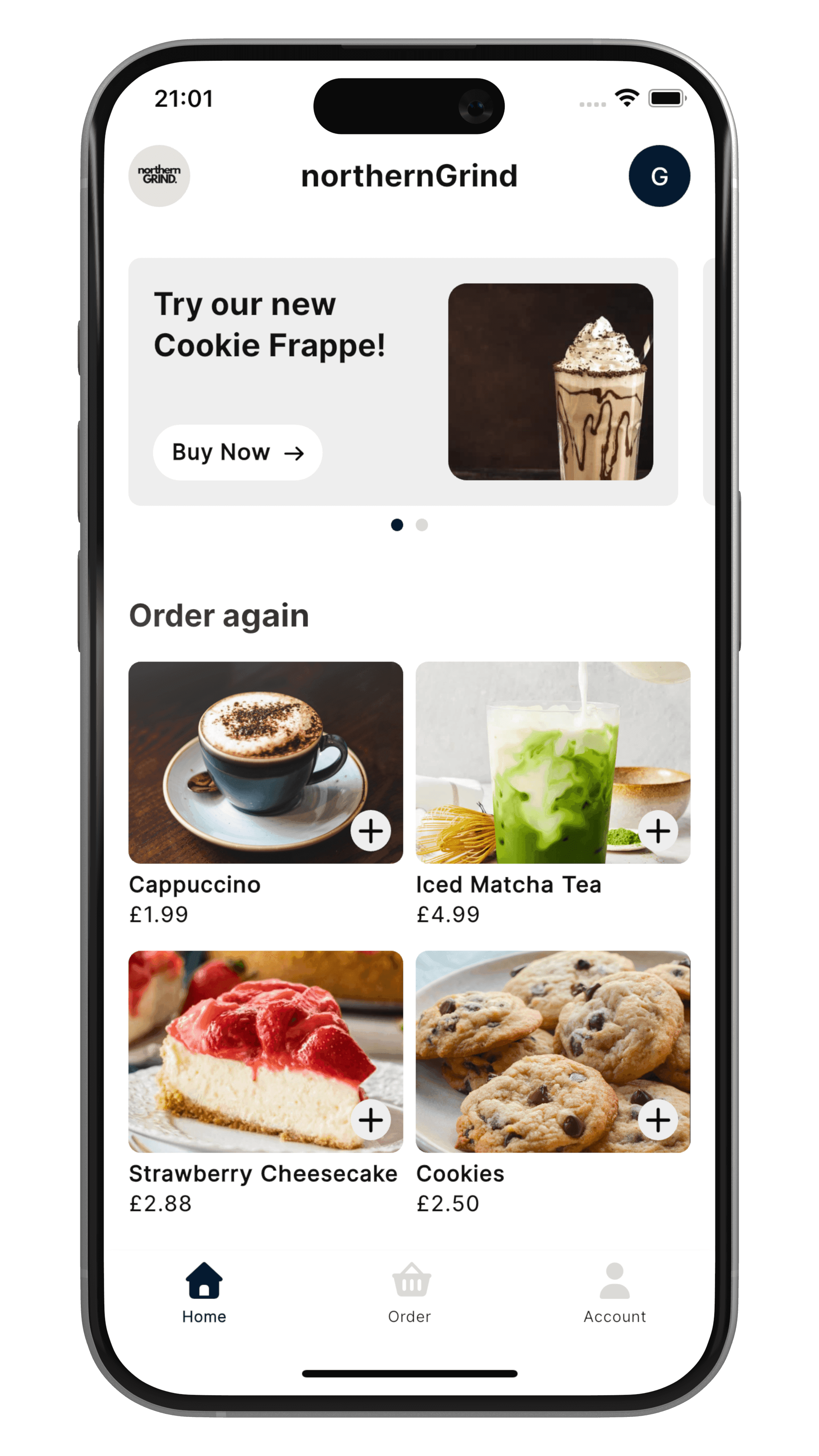
Your Sizzle app should look like your café, restaurant, pub, or takeaway, not like a generic ordering app. Your name, logo, colours, and photos all carry through, from the icon on your customers' phones to the screen they see when the app opens.
This guide covers what to prepare, what to add, and how to change it later.
What you can brand
- Your name: shown in the app and in the App Store and Google Play.
- Your logo: used across the app, including its icon and launch screen.
- Your colours: the colours customers see through the app.
- Your photos: the imagery that makes your menu and venue look good.
Before you start
Gather these in one place:
- Your logo as a clear, high-quality image. A transparent background works best.
- The colours you already use on your signage, menus, or social media. If you're not sure of the exact shade, check your website or ask whoever designed your menu.
- A handful of photos of your food, drinks, and venue.
1. Choose your logo
App icons are square, so a logo that still looks good in a square is the safest choice. If your logo is long and wide, such as a wordmark, think about whether a simple symbol or your initials would read better on a phone home screen.
Keep it simple. Customers will see your icon at a small size, so fine detail and thin lines can get lost.
2. Pick your colours
Stick to one main colour and, if you like, one accent. A few tips:
- Use the colours customers already link with you.
- Make sure text stays easy to read against your colours. Light text on a pale background is hard to read, especially outdoors.
- Don't use too many colours. Less looks more professional.
3. Add your photos
Good photos sell food. A few quick wins:
- Shoot in natural light, near a window if you can.
- Show the food on its own, uncluttered, from slightly above or at eye level.
- Use real photos of your own menu rather than generic ones. Customers can tell.
Your menu images can also come from Square, which syncs to your app.
4. Add it all in your dashboard
Add your name, logo, colours, and photos in your Sizzle dashboard. When you're happy with how it looks, hit Publish.
Changing your branding later
You can swap your colours, logo, or imagery from your dashboard at any time. We push the changes through in your next app update, so they don't appear instantly. If you're planning a rebrand or a seasonal refresh, make the changes a little ahead of time.
Checklist
- Logo ready and looks good in a square
- One or two brand colours chosen
- A few good photos
- Everything added in your dashboard
Ready to go live? See how to set up your Sizzle app.