How to set up your Sizzle app
Your Sizzle app is live in about 1 to 2 days, and most of that is Apple and Google reviewing it. The setup itself takes a few minutes. Here's every step, in order.
Before you start
You'll need:
- A Square account with your menu in it. Sizzle reads your menu, prices, images, and opening hours from Square, so there's nothing to re-type.
- Your logo and the colours you want your app to use.
- A few photos of your food or venue, if you have them.
1. Sign up
Choose Start free trial and answer a few quick questions about your business. At the end, add your contact details and confirm your email with the code we send you. Your account is created once the code is verified.
You'll pick your plan later, from your dashboard, so you can look around before you decide.
2. Connect Square
Link your Square account to Sizzle (how the Square integration works). Once it's connected, your menu, prices, images, and opening hours sync automatically. Orders from your app are sent directly to your Square POS, so they appear alongside your in-person sales. There's no extra tablet to look after.
3. Make it yours
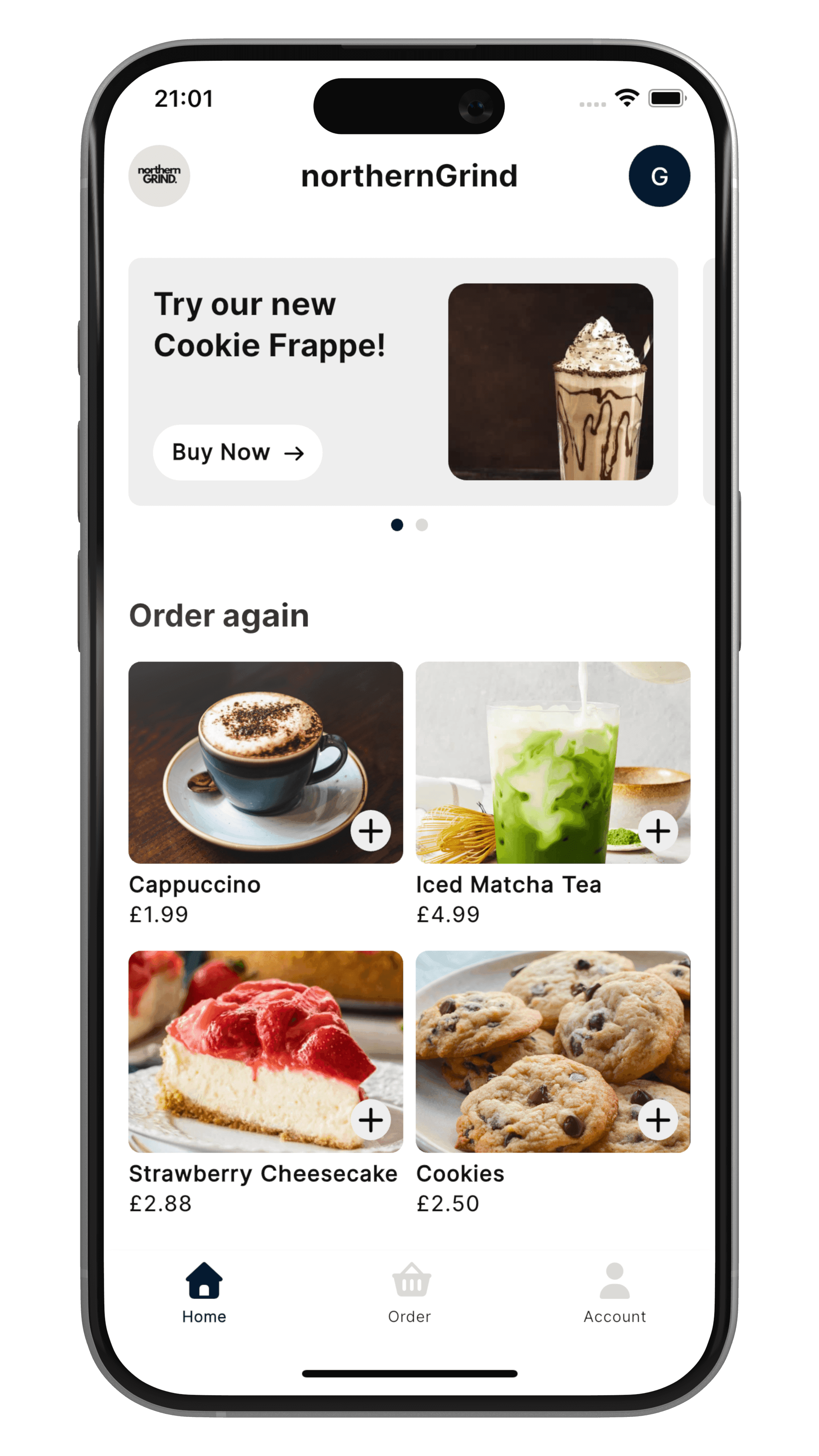
Add your name, logo, colours, and photos in the dashboard. This is what turns a standard ordering app into one that looks and feels like your business.
Not sure what to use? A simple logo and one or two brand colours are plenty to start with. You can change them later.
4. Publish
When you're happy with how it looks, hit Publish. You choose when. From there we handle the App Store and Google Play release for you.
Apple and Google review every app before it goes live, and that part is out of our hands. Most apps are live within a few days.
5. Tell your customers
Once your app is live, customers can scan a QR code, download it, and order. Put your QR code where people are already looking:
- On tables, for table service
- At the counter, next to the till
- On takeaway bags and boxes
- On your window, so passers-by can order ahead
- On your social media and receipts
Keeping your app up to date
You don't need to update your app when your menu changes. Change your menu, prices, or opening hours in Square once, and your app stays in sync.